
15 Reasons Your Wi-Fi Slows Down in Winter and How to Fix It
If your Wi-Fi seems slower when temperatures drop, you are not alone. Winter often means spending more time indoors, streaming more entertainment, connecting additional devices, and relying on your home internet for longer periods. These changes can make a previously reliable connection feel frustratingly slow.
However, the weather itself is not always to blame. Wi-Fi signals travel through walls, furniture, and other obstacles regardless of the season, while your internet connection can be affected by network congestion, damaged outdoor equipment, weak router placement, and problems with your internet service provider.
The good news is that many winter internet problems have simple solutions. Before upgrading your router or paying for a faster package, it helps to identify what is actually causing the slowdown.
Here are 15 common reasons your Wi-Fi might feel slower in winter, along with practical ways to fix each problem.
1. More Devices Are Connected to Your Wi-Fi
During winter, family members often spend more time indoors watching videos, playing games, attending online classes, and browsing social media. As a result, more devices may compete for your available internet bandwidth.
For example, someone might be streaming a movie in the living room while another person plays an online game and several phones download updates. Even a fast internet package can feel slow when many devices are transferring large amounts of data simultaneously.
**How to fix it:**
- Disconnect devices that are no longer being used.
- Pause unnecessary downloads and automatic updates during busy hours.
- Check your router's connected-device list for unfamiliar devices.
- Enable Quality of Service (QoS) settings if your router supports them.
If your household regularly uses the internet heavily, upgrading your internet package may help. However, first check whether the slowdown is caused by excessive usage or a separate connection problem.

2. Your Router Is Placed Behind Furniture or Walls
When the weather gets colder, people sometimes rearrange rooms, move furniture, or place routers in less convenient locations. Unfortunately, a router hidden behind a cabinet or positioned in a corner may deliver weaker Wi-Fi throughout the house.
Wi-Fi signals can be weakened by walls, metal objects, large appliances, and other physical obstacles. Reinforced concrete walls can be particularly challenging because they may significantly reduce signal strength.
**How to fix it:**
- Place your router in a central, open location.
- Keep it elevated on a shelf rather than on the floor.
- Avoid hiding it inside cupboards or behind televisions.
- Keep it away from large metal objects and thick walls when possible.
A small change in router placement can sometimes improve coverage without requiring any new equipment.

3. Your Internet Provider Is Experiencing Network Congestion
Sometimes your Wi-Fi signal is strong, but webpages still load slowly. This may happen because the internet service provider is experiencing congestion in your area.
During evening hours, many households may stream videos, download files, and use online services simultaneously. If your provider's local network is busy, your connection can become slower even when your router is working correctly.
**How to fix it:**
- Run a speed test during the morning and again during the evening.
- Compare the results with the speed included in your internet package.
- Test using an Ethernet cable to separate Wi-Fi problems from internet service problems.
- Contact your provider if speeds repeatedly fall well below what your package should deliver.
If your connection slows down at the same time every evening, congestion may be a more likely explanation than cold weather alone.

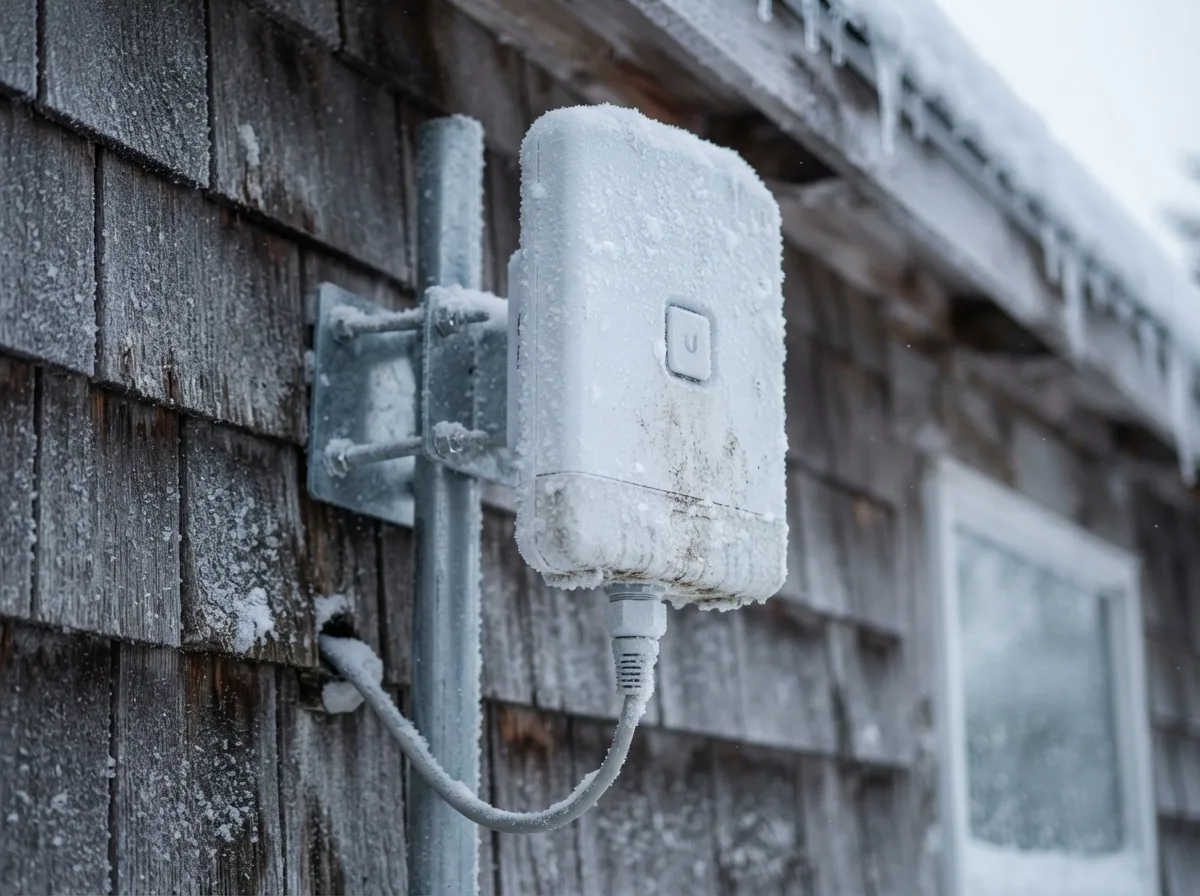
4. Cold Weather Is Affecting Your Outdoor Internet Equipment
This issue is particularly relevant if you receive internet through an outdoor wireless receiver, rooftop antenna, or other externally installed equipment.
Cold temperatures alone do not necessarily damage properly installed equipment. However, moisture, condensation, ice accumulation, damaged seals, and temperature extremes can affect vulnerable equipment or connections.
If your outdoor receiver becomes unstable during bad weather, your internet may disconnect repeatedly or become slower than usual.
**How to fix it:**
- Check whether the problem coincides with rain, frost, or strong winds.
- Inspect accessible cables for visible damage without climbing onto a roof.
- Keep outdoor equipment properly sealed and installed according to the manufacturer's instructions.
- Ask your internet provider to inspect the receiver, mounting, and connections if the problem continues.
Never handle exposed wiring or climb onto a slippery roof to troubleshoot equipment. Outdoor installations are best checked by a qualified technician.
5. Your Router Is Overheating or Poorly Ventilated
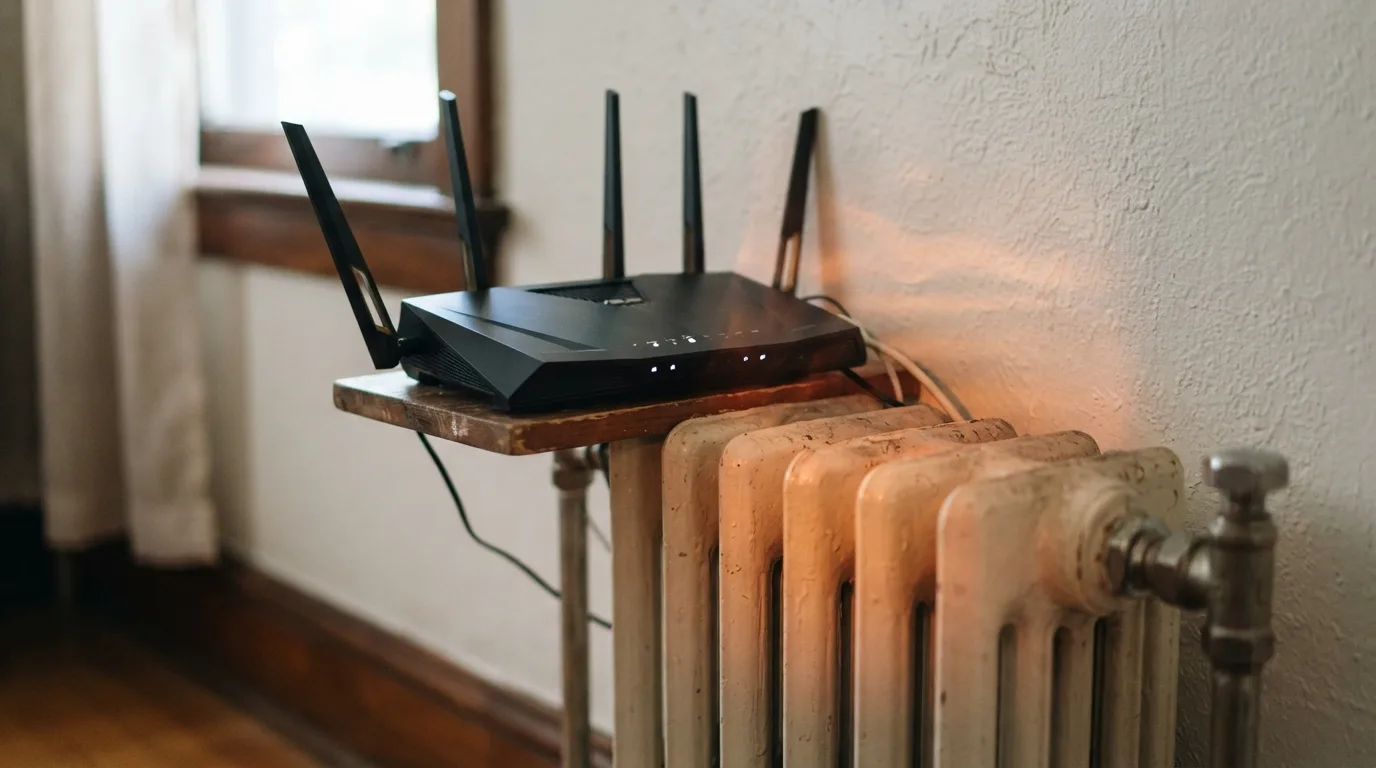
Although winter is cold outdoors, indoor heating can make some rooms warmer than expected. A router placed near a heater, inside an enclosed cabinet, or under a pile of objects may not have enough ventilation.
Overheating can cause certain routers to become unstable, disconnect devices, or perform poorly. Dust accumulation may also restrict airflow around ventilation openings.
**How to fix it:**
- Place the router in a well-ventilated area.
- Keep it away from heaters and direct heat sources.
- Avoid covering its ventilation openings.
- Clean external dust gently according to the manufacturer's guidance.
Routers are designed to operate within a specified temperature range. Check the manufacturer's documentation if you suspect temperature-related problems.
6. Your Wi-Fi Signal Is Struggling to Reach Every Room
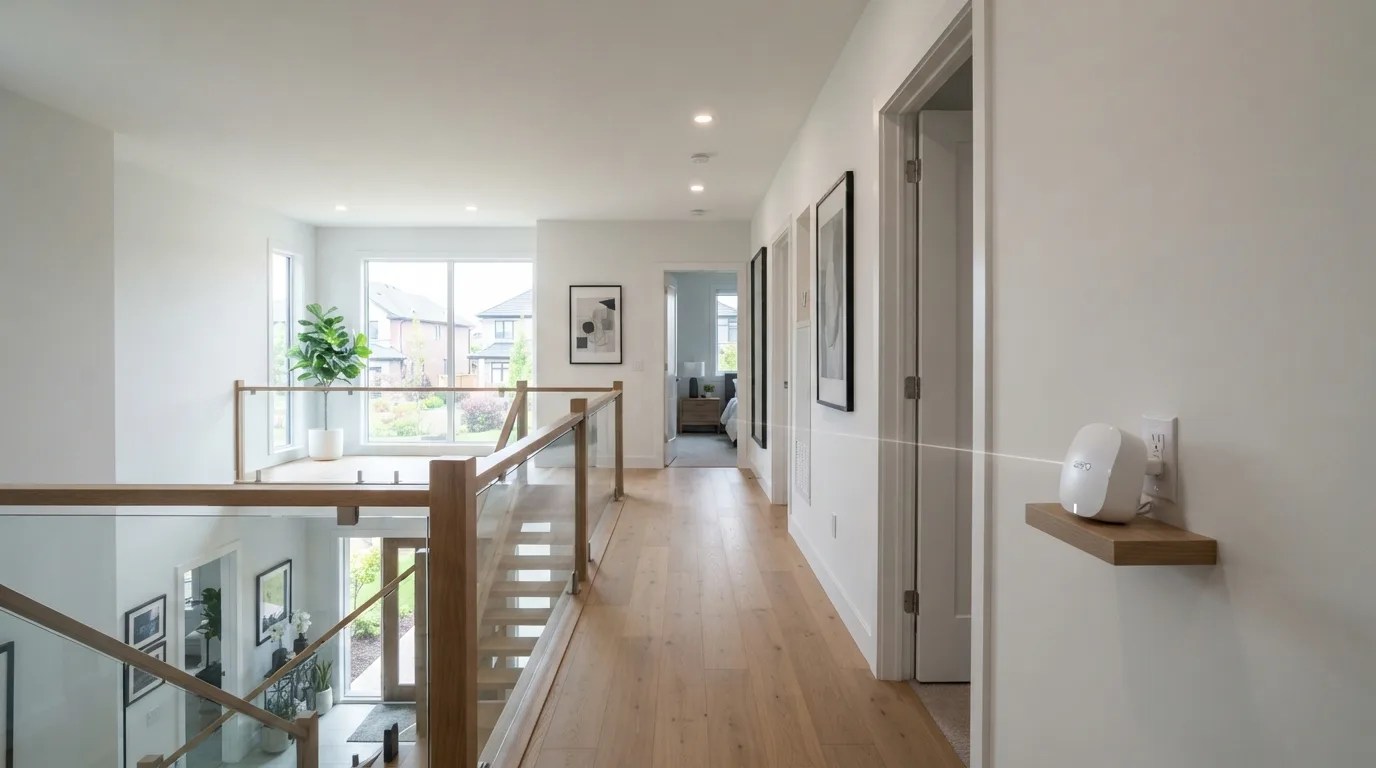
A connection that works perfectly in one room may be unreliable in another. This often happens when the router is far away, separated by multiple walls, or located at one end of a large house.
Winter can make the problem more noticeable because people spend more time in bedrooms, basements, or other areas where the signal is weaker.
**How to fix it:**
- Test your connection in several rooms.
- Move closer to the router to see whether the speed improves.
- Consider a Wi-Fi extender for a small coverage gap.
- Consider a mesh Wi-Fi system for a larger home with several weak-signal areas.
Remember that an extender cannot create extra internet bandwidth. It can improve coverage, but its performance depends on the quality of the connection it receives from the main router.
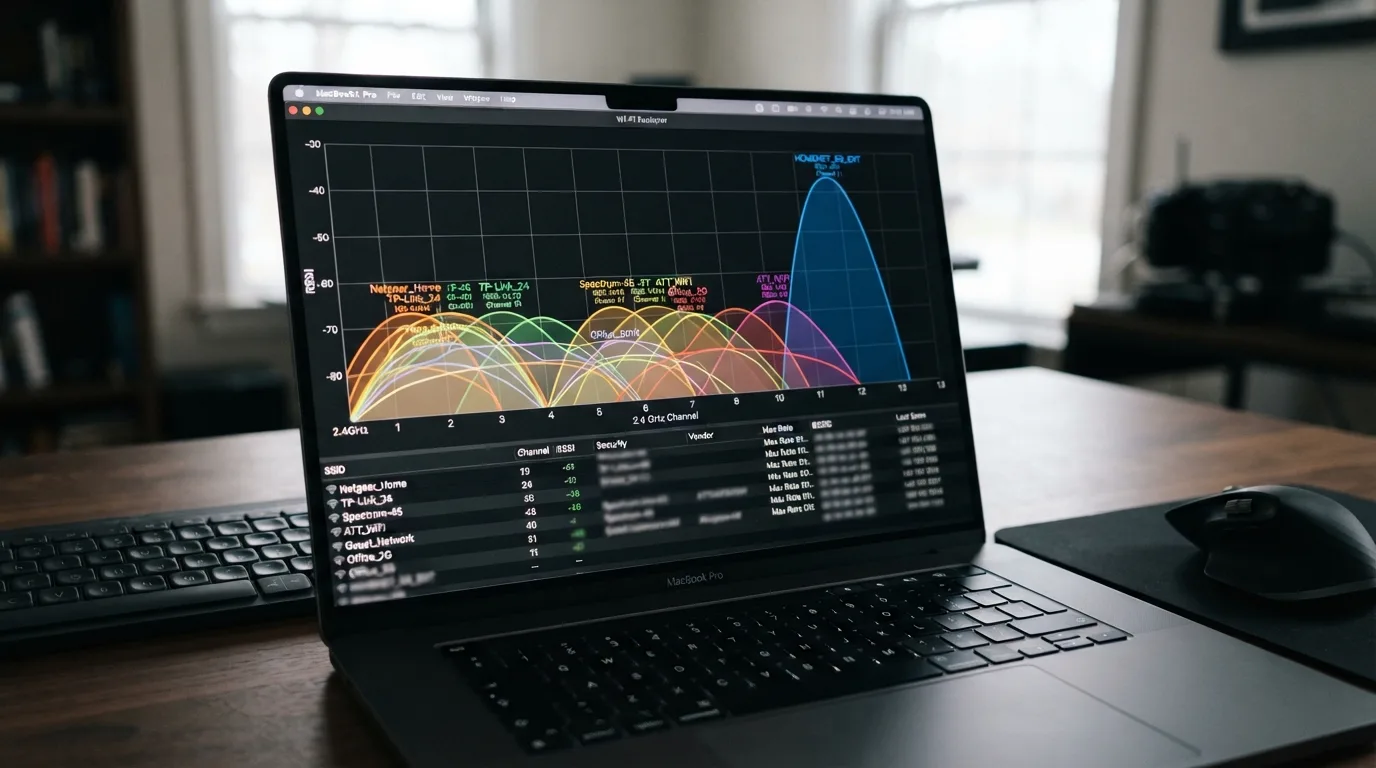
7. Your Router Is Using a Crowded Wi-Fi Channel
Wi-Fi networks share radio frequencies with nearby networks and, in some cases, other wireless devices. In apartments and densely populated neighborhoods, many routers may operate close to one another.
If several nearby networks use the same or overlapping channels, wireless performance can suffer, especially on the 2.4 GHz band.
**How to fix it:**
- Open your router's administration settings.
- Check whether automatic channel selection is available.
- If you know how to configure channels, test a less congested option.
- On 2.4 GHz Wi-Fi, channels 1, 6, and 11 are commonly used non-overlapping choices in regions where those channels are permitted.
- Use the 5 GHz band for compatible devices when its shorter range is not a problem.
For many households, leaving channel selection on automatic works well. Manual changes are most useful when measurements show that the current channel is congested.
8. Your Router Is Too Old for Your Current Needs
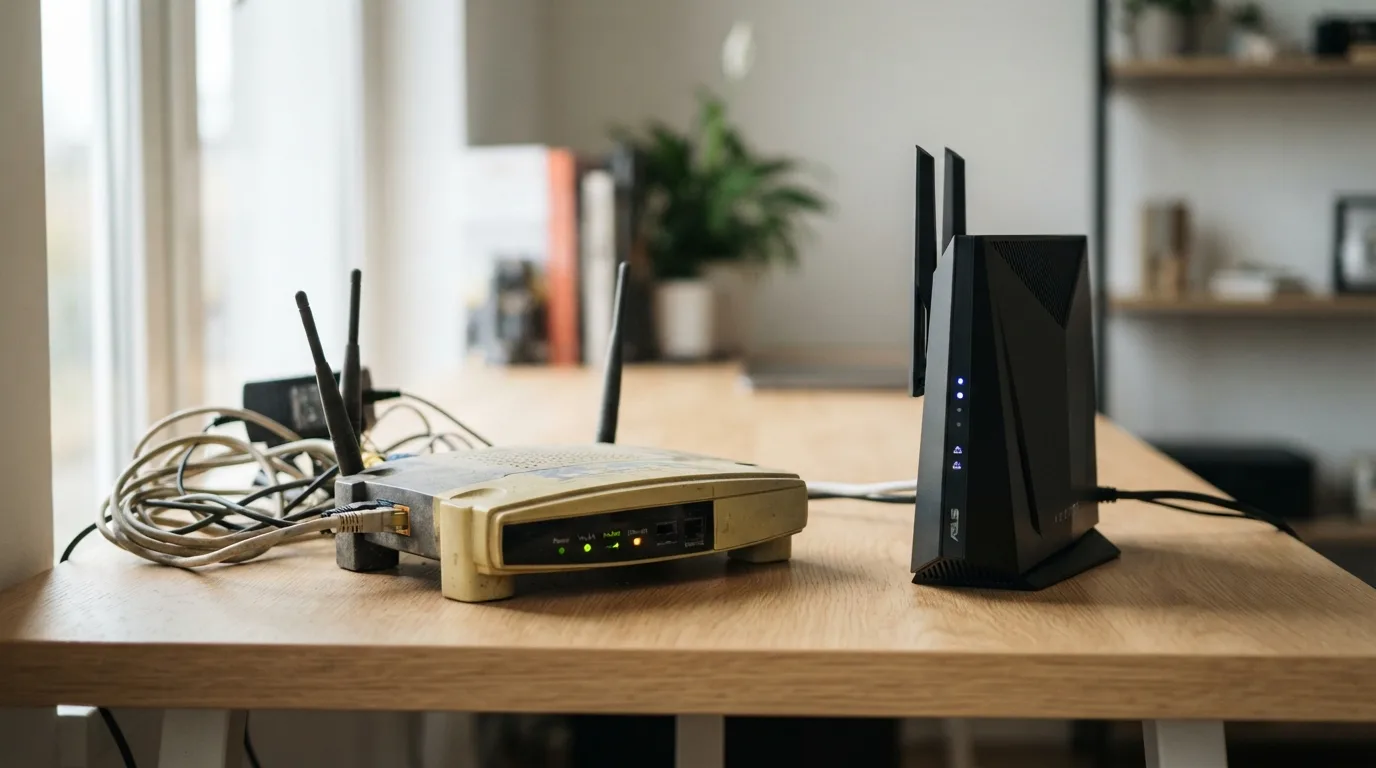
An older router may struggle with many modern devices, demanding applications, or a high-speed internet package. It might support older Wi-Fi standards, have limited processing capacity, or lack features that help manage a busy home network.
However, age alone does not mean a router must be replaced. A well-functioning older model may still be sufficient for ordinary browsing and streaming.
**How to fix it:**
- Check which Wi-Fi standard your router supports.
- Review the maximum wired and wireless speeds specified by the manufacturer.
- Compare your internet package speed with your router's capabilities.
- Consider upgrading if the router cannot support your actual usage or no longer receives necessary security updates.
A newer router may improve wireless coverage, capacity, and reliability, but it will not fix an underlying problem with your provider's network.
9. Your Devices Are Automatically Downloading Updates
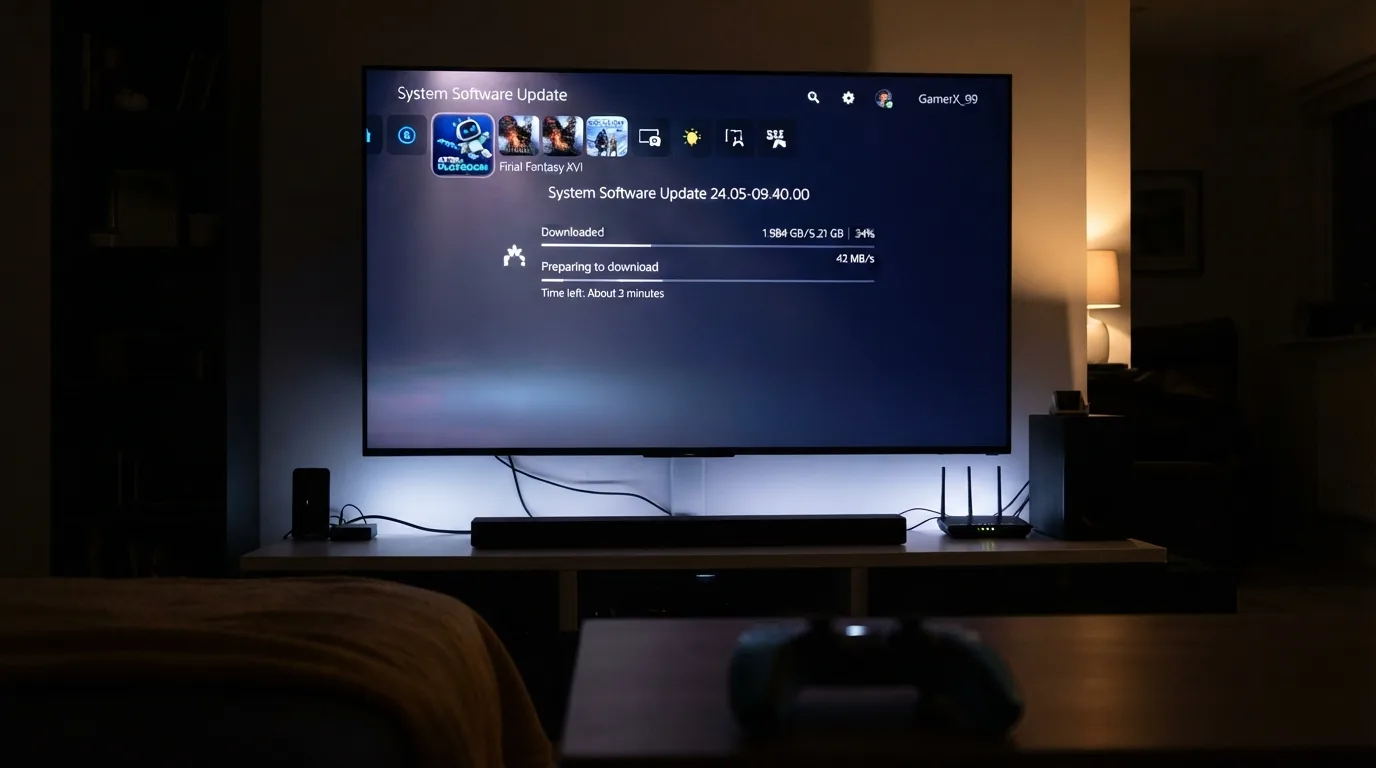
Winter is not a special cause of software downloads, but when people use their devices more frequently indoors, they may notice updates happening at inconvenient times.
Operating systems, game launchers, smart televisions, and cloud-storage services can download large files in the background. If several devices do this simultaneously, other activities may become slower.
**How to fix it:**
- Check download activity on computers and gaming consoles.
- Schedule large updates for overnight hours when practical.
- Pause nonessential cloud backups during important video calls or gaming sessions.
- Review automatic update settings on devices that consume large amounts of data.
You do not need to disable important security updates permanently. Scheduling large downloads is generally a better approach.
10. Your Wi-Fi Frequency Band Is Not Suitable for the Room
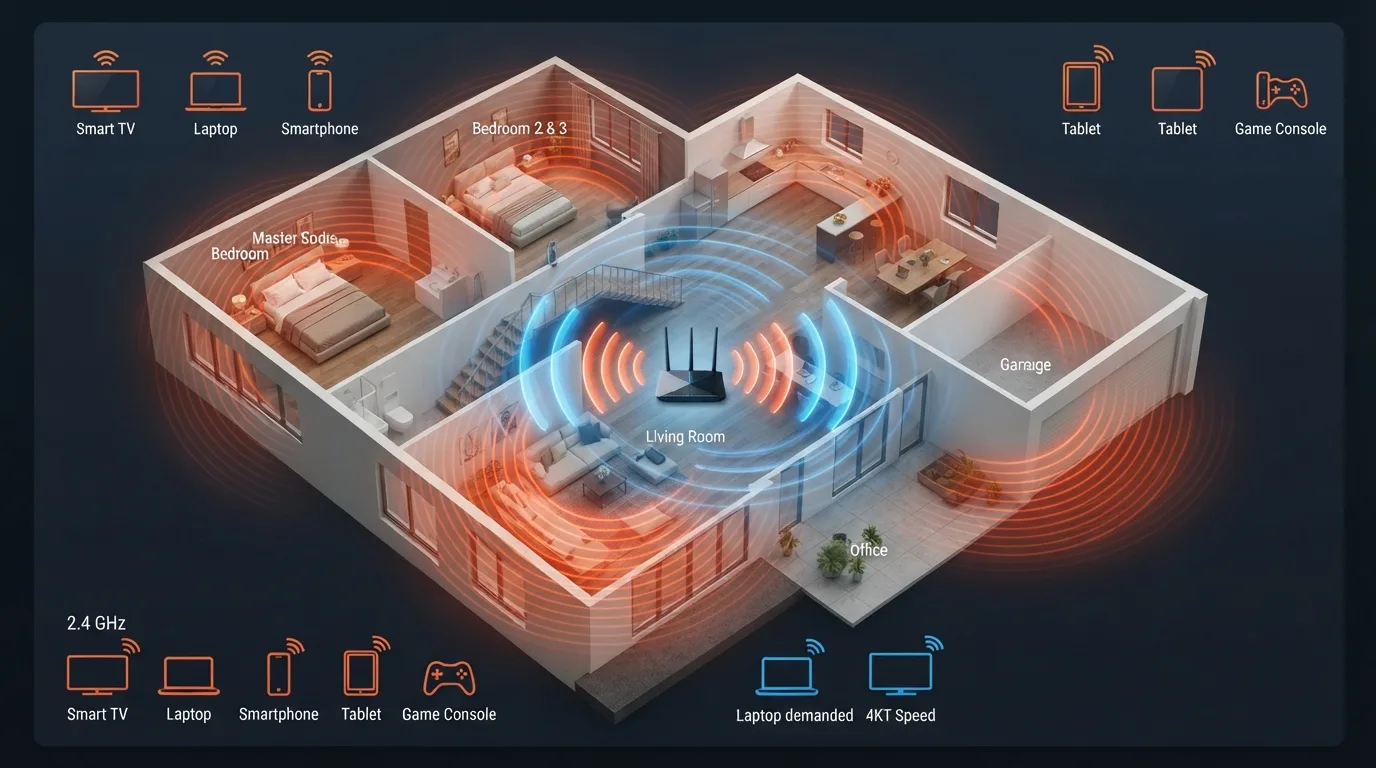
Many modern routers offer 2.4 GHz and 5 GHz Wi-Fi, while newer models may also support 6 GHz.
Each band has different strengths. The 2.4 GHz band generally offers better range and can penetrate obstacles more effectively, but it is often more congested. The 5 GHz band can deliver higher speeds at shorter distances, while 6 GHz can provide additional capacity for compatible devices but usually has a more limited range through obstacles.
**How to fix it:**
- Use 2.4 GHz for devices that are far from the router or separated by several walls.
- Try 5 GHz for nearby devices that need faster speeds.
- Use 6 GHz if your router and device support it and the signal reaches the location reliably.
- If your router combines bands under one network name, allow its automatic band selection to work unless you have a reason to separate them.
The best band depends on your home's layout, the device you are using, and the amount of interference nearby.
11. Your Internet Package Is No Longer Fast Enough
Your internet usage may have grown over time. Perhaps you now have more smart devices, higher-resolution video streaming, online gaming, or several people working and studying from home.
A package that once felt fast may no longer provide enough capacity for everyone, particularly during busy hours.
**How to fix it:**
- Check your current package speed.
- Run speed tests while other household members are using the internet.
- Compare wired results with the advertised package speed.
- Consider upgrading only if your actual usage consistently exceeds your current capacity.
For example, if a wired speed test shows that your provider is delivering the expected speed but several simultaneous activities still compete for bandwidth, a faster package may be beneficial.
If the wired connection is also much slower than expected, investigate the line or provider before paying for an upgrade.

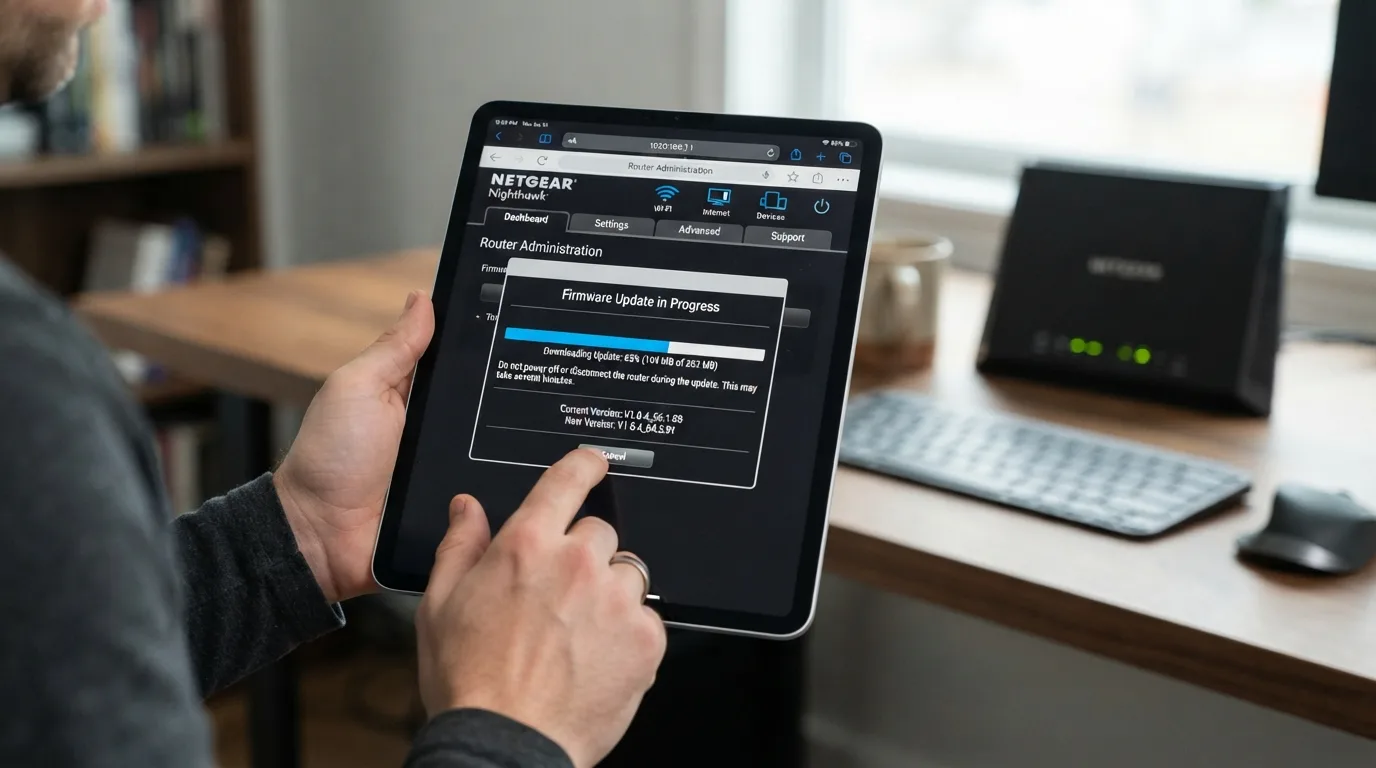
12. Your Router's Firmware Needs an Update
Router firmware is the software that controls how your router operates. Manufacturers sometimes release updates that address security issues, improve compatibility, or correct performance-related bugs.
If your router has not been updated for a long time, outdated firmware could contribute to instability in some cases.
**How to fix it:**
- Sign in to your router's administration interface or official management app.
- Check whether a firmware update is available.
- Read the manufacturer's update instructions carefully.
- Back up the configuration if the router supports it.
- Avoid interrupting power while an update is installing.
Only use firmware intended for your exact router model and hardware revision. Installing the wrong software can make the router unusable.
13. Your Ethernet Cable or Internet Line Is Damaged
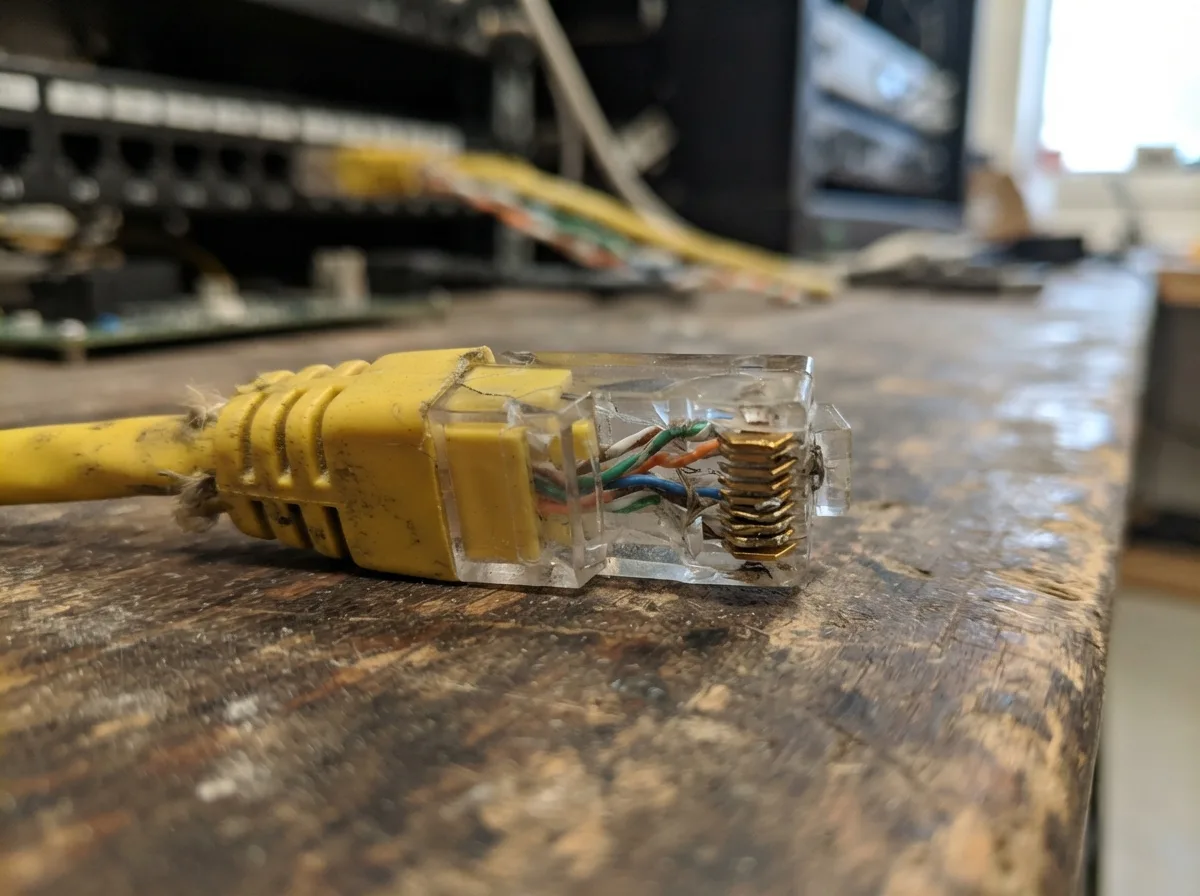
If your internet connection is delivered through a wired broadband line, a damaged cable or loose connector can cause intermittent service, reduced performance, or complete disconnections.
Weather can expose existing weaknesses in outdoor cables and connectors, particularly when moisture enters poorly sealed connections. Indoor cables can also become damaged if furniture presses on them or connectors are repeatedly bent.
**How to fix it:**
- Check accessible Ethernet cables for visible damage.
- Reseat loose connectors carefully.
- Try a known-good Ethernet cable when testing a wired connection.
- Check whether your modem or router reports a line fault.
- Contact your provider if the problem persists.
Do not open sealed equipment or repair exposed outdoor wiring yourself. A technician can test the connection and replace faulty components safely.
14. Your Router or Modem Needs a Restart
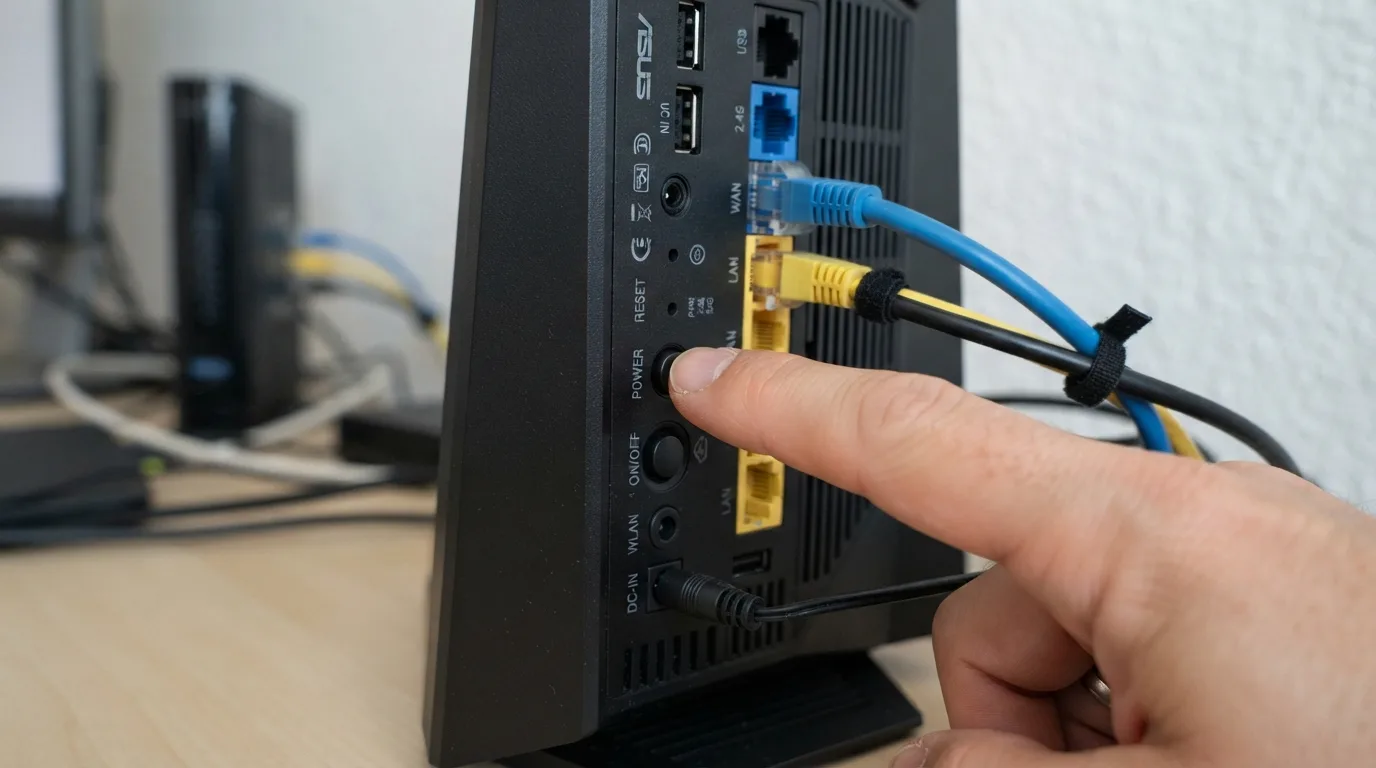
Routers and modems can occasionally develop temporary software or connection problems. If your internet has become unusually slow or devices are disconnecting frequently, restarting the equipment may restore normal operation.
A restart can clear certain temporary issues, but it will not fix persistent congestion, weak coverage, damaged cables, or a failing internet line.
**How to fix it:**
- Save your work and make sure nobody is in the middle of an important upload or download.
- Turn off the router and modem, if they are separate devices.
- Wait about 30 seconds.
- Turn on the modem first and allow it to reconnect.
- Turn on the router if it is a separate device.
- Wait until the status lights indicate that the connection is ready, then test your internet again.
Avoid pressing the factory-reset button unless you intend to erase the router's settings. A normal restart is usually all you need for this troubleshooting step.
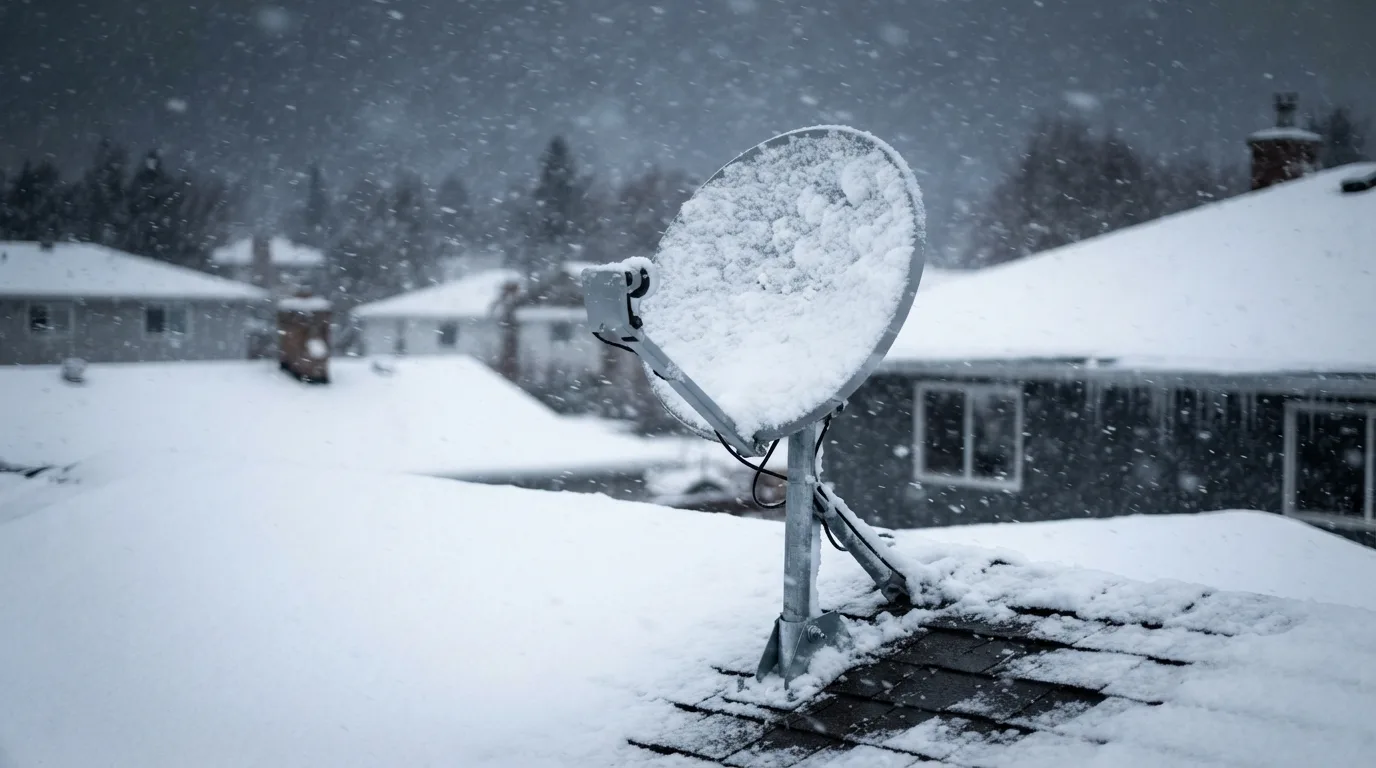
15. Your Satellite or Fixed Wireless Connection Is Affected by Severe Weather
If your internet arrives through a satellite dish or fixed wireless receiver, certain weather conditions can affect the signal. Heavy rain can attenuate some radio signals, while snow or ice accumulation may interfere with satellite equipment in locations where those conditions occur.
Fixed wireless services can also be affected by obstructions, antenna alignment, interference, or problems at the provider's tower.
The effect depends on the technology, frequency, equipment, and severity of the weather. Ordinary cold temperatures do not automatically mean the connection will slow down.
**How to fix it:**
- Note whether slowdowns coincide with heavy rain, strong winds, or other severe weather.
- Check your provider's service-status page if one is available.
- Ask your provider to inspect antenna alignment and outdoor connections if the problem continues.
- Keep satellite equipment clear of obstructions only when it is safe to do so, following the manufacturer's guidance.
If the connection becomes slow during bad weather but returns to normal afterward, the issue may be environmental rather than related to your indoor Wi-Fi settings.
A Quick Winter Wi-Fi Troubleshooting Checklist
If you want to identify the problem without spending hours adjusting settings, follow this simple sequence.
- **Step 1: Test close to the router.** If the speed improves significantly, the problem may be wireless coverage.
- **Step 2: Run a wired speed test.** If Ethernet is also slow, investigate your internet service rather than focusing only on Wi-Fi.
- **Step 3: Compare different times.** A connection that slows mainly in the evening may be experiencing network congestion or heavy household usage.
- **Step 4: Check connected devices.** Look for downloads, backups, and unfamiliar devices consuming bandwidth.
- **Step 5: Restart your equipment.** This can resolve certain temporary problems.
- **Step 6: Check outdoor equipment and service alerts.** If your connection depends on an outdoor receiver or satellite dish, contact your provider when weather-related issues persist.
These checks can help you narrow down the cause before buying a new router, extender, or internet package.
Frequently Asked Questions
Does cold weather directly slow down Wi-Fi?
Usually, no. Indoor Wi-Fi generally operates normally in cold weather when equipment is within its supported operating range. Winter slowdowns are often caused by increased internet use, poor router placement, interference, or problems with outdoor internet equipment.
Why does my Wi-Fi slow down at night during winter?
Your household may be using more devices simultaneously, or your internet provider may experience evening congestion. Run a wired speed test and compare results at different times to help determine which is more likely.
Can rain or snow affect my internet connection?
Yes, depending on the connection type and severity of the weather. Satellite and some fixed wireless connections may be affected by heavy precipitation or equipment problems. Wired broadband can also experience faults if outdoor cables or connections are damaged.
Should I buy a new router if my Wi-Fi becomes slow in winter?
Not immediately. First test your connection near the router and through Ethernet, check connected devices, and restart your equipment. Consider replacing the router only if it cannot meet your needs, has inadequate coverage, or shows persistent hardware or software problems.
Does using a Wi-Fi extender make the internet faster?
An extender can improve coverage in areas where the router's signal is weak. However, it does not increase the bandwidth supplied by your internet provider, and some extenders reduce available throughput depending on their design and connection to the main router.
What is the best Wi-Fi band for winter?
There is no special winter Wi-Fi band. The 2.4 GHz band is often better for range, while 5 GHz can offer higher speeds at shorter distances. The best option depends on your router, device, walls, and surrounding interference.
Conclusion
A slow winter internet connection can be frustrating, but cold temperatures are not automatically the culprit. Increased household usage, weak Wi-Fi coverage, crowded channels, outdated equipment, and weather-related problems with outdoor connections are all possible explanations.
Start by testing your speed near the router and through an Ethernet connection. Then check your device activity, router placement, equipment condition, and internet package before spending money on upgrades.
With a few simple troubleshooting steps, you can often identify the real cause of your slowdown and restore a more reliable connection for streaming, gaming, browsing, and working from home throughout the winter season.